Simple Ways to access Safe Mode On Windows 11
The following article will provide step by step instructions on how to access Windows Safe Mode.
Tested on Windows 11 25H2 Pro
Most guides provide the failed to boot method for gaining access to Safe Mode, which is basically to abruptly reboot your computer 3 times during its boot process. This triggers the Advanced or Troubleshooting boot menus and from there you can navigate to Safe Mode. Not a great method if the computer is already struggling from something, further boot interruptions do not seem like a smart approach to take. Here are a few other alternative methods you can try.
If networking access is important to you, we suggest connecting a network cable versus depending on Wi-Fi for Safe Mode emergencies.
The Hold down the SHIFT key method:
1) Click Start > Power Button > Hold down the Shift key and click Restart. You only need to hold Shift while clicking Restart

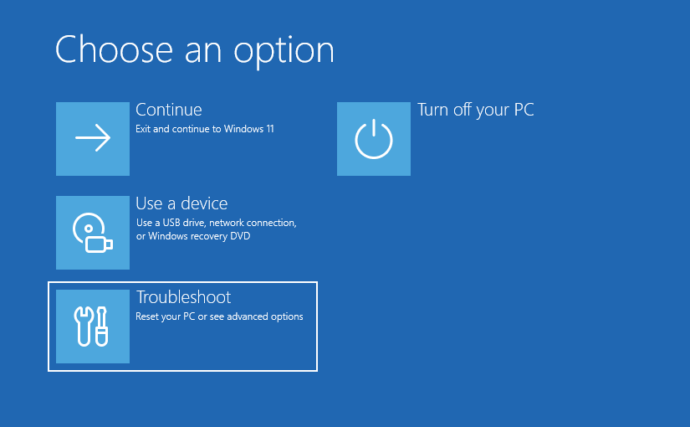
2) Select Troubleshoot
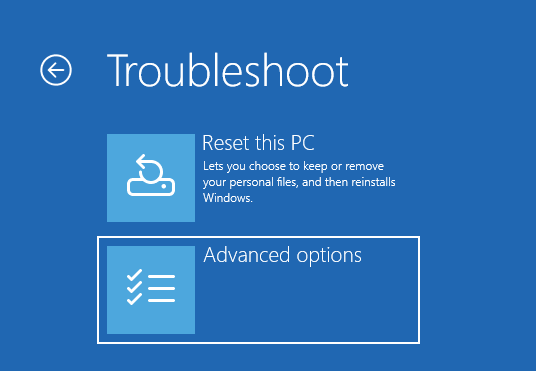
3) Select Advanced Options
4 ) Select Startup Settings
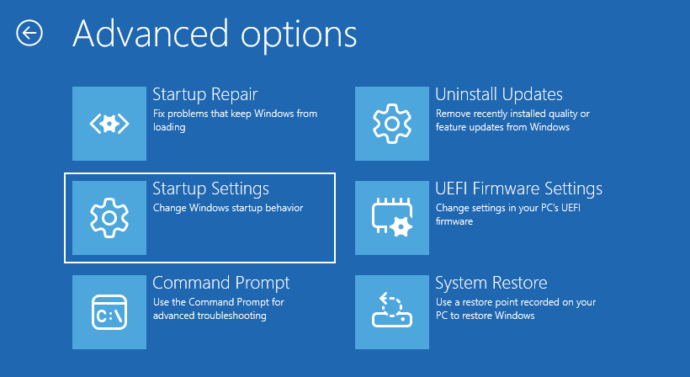

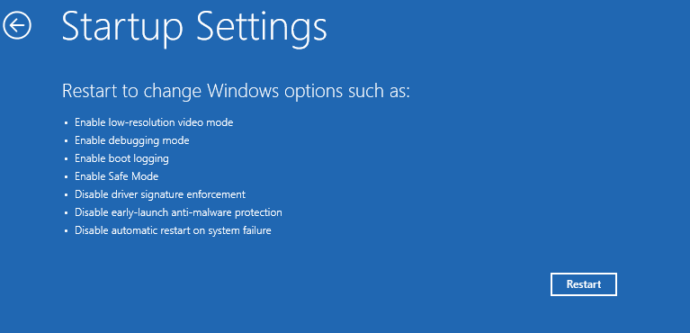
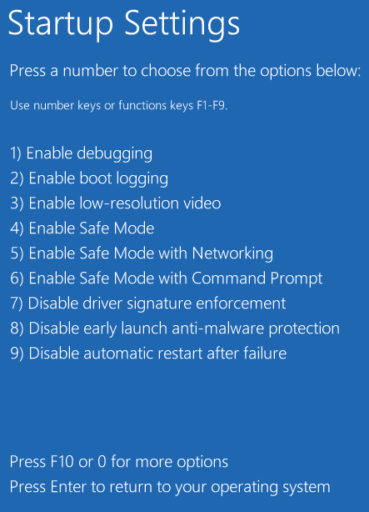
6) Press 5 or F5 for Safe Mode with Networking.
The command line method:
To override the normal boot order on Windows 11 you can enter an admin command prompt and type the following:
bcdedit /set {current} safeboot network
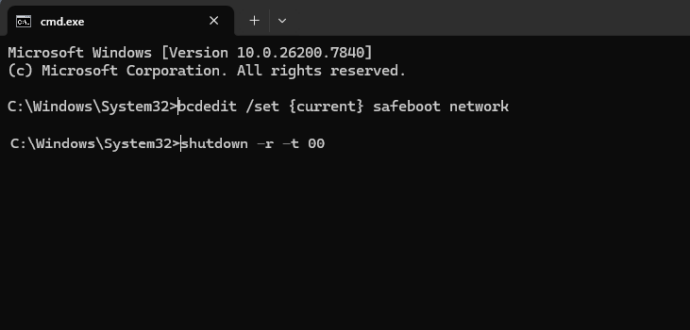
Once in Safe Mode and you are ready to boot back to normal simply delete that boot order override by typing:
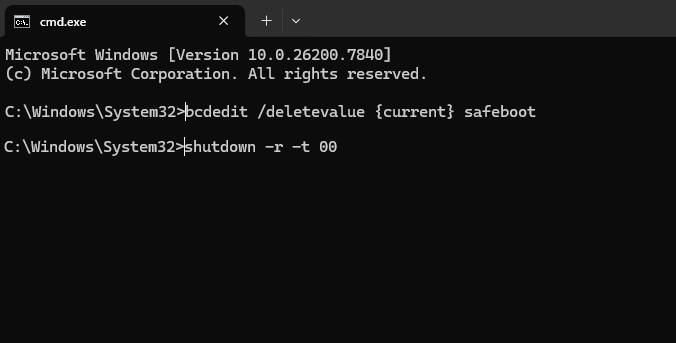
bcdedit /deletevalue {current} safeboot